
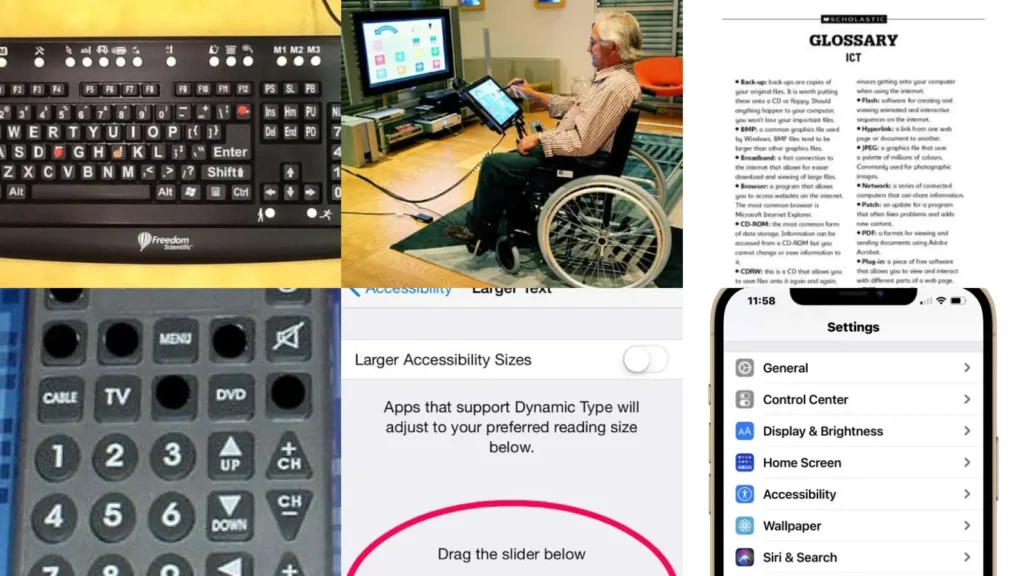

New gadgets show up every fall and most of us just get handed a box with zero instructions. It happens every single year, doesn’t it?
The usual mistake is assuming a device has to be figured out alone, in silence, with no notes. That’s exactly backward!
A little labeling and a few printed cheat sheets fix almost everything!
This list started as a scroll through hundreds of pins looking for setups that actually work in a real living room. Anything too fussy or too expensive got tossed immediately.
What’s left are fifteen ideas that are doable on a weekend, budget friendly and genuinely useful, not just cute for a photo. Who doesn’t love a fix that actually works?
Some are printables, some are settings tweaks, a couple are just stands and labels.
Below you’ll find phone tricks, tablet setups, video calling help and a few safety checks worth doing today. Grab a coffee and work through them one at a time!
No tech background needed here, I promise. Let’s get into it!
TECHNOLOGY HELP FOR SENIORS
Large Print Keyboard Labels
We’re starting off strong with large print keyboard labels. Tiny letters on a keyboard cause more frustration than almost anything else in a home office.
I stuck peel-off letter labels in bold black on white and the whole keyboard suddenly made sense! How cute is that?
- Fixes the number one complaint
- Sticks on in ten minutes
- Works on any keyboard brand
- No new hardware needed
Senior Friendly Tablet Stand
A wobbly tablet propped against a stack of books is nobody’s favorite setup. This senior friendly tablet stand solves that instantly.
The wide base keeps it steady during video calls. Not that a leaning tower of cookbooks isn’t charming, haha!
- No more leaning towers
- Holds tablets of every size
- Adjustable viewing angle
- Fits on a nightstand easily
Printable Tech Terms Glossary
Who says tech terms have to sound like another language? This printable glossary breaks down words like cloud, browser and app in plain English.
Tape it inside a cabinet door or keep it by the phone charger.
- Ends the guessing game
- One page front and back
- Plain language definitions
- Print at home, no fancy paper
Easy Remote Control Labels
Remote controls multiply out of nowhere and none of them get labeled. These easy remote control labels put an end to the mystery.
My house had three unmarked remotes until I finally color coded them for TV, sound bar and streaming box. Now nobody’s digging through couch cushions during the good part of a show, lol!
- Untangle the remote pile
- Color coded by device
- Laminated so they last
- Peel off if you move
Enlarge Text On iPhone
Squinting at a tiny phone screen gets old fast. Enlarging the text is one of the most useful iphone tips for seniors. It takes under a minute.
She dragged the slider until it felt right. Now she reads texts without her glasses at all, who doesn’t love that?
- The one minute screen fix
- No app download needed
- Works across every app
- Adjustable anytime
Setting Up Emergency SOS
Emergency SOS is one of those features everyone should set up before it’s ever needed. It only takes a few taps to add trusted contacts.
Pressing the side button several times calls for help and alerts family! Honestly, it gives us both a lot of peace of mind.
- Set it once, forget it
- Add up to three contacts
- Sends location automatically
- Works even with the phone locked
Voice Control Setup Guide
Talking to a phone instead of typing sounds strange until it actually works. Voice Control turns spoken words into taps, swipes and text.
I turned it on under Accessibility, then Voice Control. Felt silly talking to my phone at first, haha!
It’s a little robotic in the beginning. The accuracy improves fast though. Honestly it’s kind of impressive.
- Skip the tiny keyboard entirely
- Dictates full sentences
- Opens apps by name
- Free, built right in
Organizing Apps Into Folders
A home screen packed with random icons is overwhelming for anyone. Grouping them into folders labeled Weather, Photos and Family makes finding things simple.
He still texts me thanking me for it! Small fix, huge relief.
iPad Accessibility Shortcut Setup
This shortcut trick belongs on every list of ipad for seniors tips because it’s such a lifesaver. Triple click the side button and an accessibility menu pops up instantly.
I set this up once under Settings, then Accessibility, then Accessibility Shortcut. Forgot about it for months!
One click and she had it, isn’t that something?
- One click, instant help
- Pick up to four features
- No searching through menus
Adjustable iPad Floor Stand
Holding a tablet upright for a whole video call gets tiring quickly. An adjustable floor stand fixes that without anyone lifting a finger.
It swivels to face a chair or a couch and adjusts higher for standing in the kitchen.
- Hands free for once
- Swivels a full circle
- Adjustable from sitting to standing height
- Sturdy weighted base
FaceTime Setup Step Guide
Anyone looking for a video calling for seniors guide should start with FaceTime, since it comes preinstalled on every iPhone and iPad. There’s nothing extra to download.
She was skeptical the whole time! Now she calls me more than I call her!
- Already on the device
- No account setup required
- One tap to answer
Video Call Printable Instructions
Not everyone wants to remember steps from memory during a call. These printable instructions sit right next to the tablet as a backup.
Big numbered steps with screenshots make it foolproof. Talk about talent, whoever designed this deserves an award!
- The backup nobody regrets
- Numbered steps with pictures
- Fits on one printed page
Best Webcam For Seniors
A built-in laptop camera is often blurry and poorly angled. A dedicated webcam fixes both problems for less money than you’d think.
Look for a wide field of view and a simple clip mount. Clearer video made a genuinely huge difference for him, same!
- Clear enough to read lips
- Clips onto any monitor
- Wide field of view
- Plug and play setup
Safe Browsing Checklist Printable

Scams get sneakier every year, so a printable checklist for safe browsing habits earns its spot here. Keep it taped near the computer as a quick reminder.
It covers checking web addresses and never clicking unexpected links. A five second glance has stopped more than one questionable email in its tracks, am I right?
- Five seconds saves a headache
- Covers email and browser habits
- One glance reminder
- Print in black and white
Two Factor Authentication Walkthrough
Last but definitely not least, this two factor authentication walkthrough belongs near the top of any online safety for seniors tips list. It adds a second lock on top of a password.
A code gets sent by text or shows up in an app. It takes an extra ten seconds and blocks a shocking number of break in attempts, not in my book will that ever feel like too much effort!
- The lock scammers hate most
- Adds ten seconds to login
- Free on nearly every account
Just a little note - some of the links on here may be affiliate links, which means I might earn a small commission if you decide to shop through them (at no extra cost to you!). I only post content which I'm truly enthusiastic about and would suggest to others.
And as you know, I seriously love seeing your takes on the looks and ideas on here - that means the world to me! If you recreate something, please share it here in the comments or feel free to send me a pic. I'm always excited to meet y'all! ✨🤍
Xoxo Dana
Related stories
- 18+ Stunning Lehenga Picture Ideas That Steal the Show
- 18+ Viral Birthday Video Ideas That Steal the Show
- How to Create the Perfect French Wardrobe in 5 Simple Steps
- 11+ Hostess Checklist Elegant Dinner Hacks That Impress
- 20+ Brutally Honest Situationship Quotes That Hit Different
- 15+ Fun Summer Activities With Friends That Cost Zero